
You can add a Zocdoc Book Online Button to allow patients to book appointments from your Squarespace site. You can also use the button block to link to your Zocdoc profile.
The steps in this guide include adding advanced code to a code block. This is available in the Core, Plus, Advanced, Business, Commerce Basic, and Commerce Advanced plans. To learn more, visit Choosing the right Squarespace plan.
Add the Book Online Button
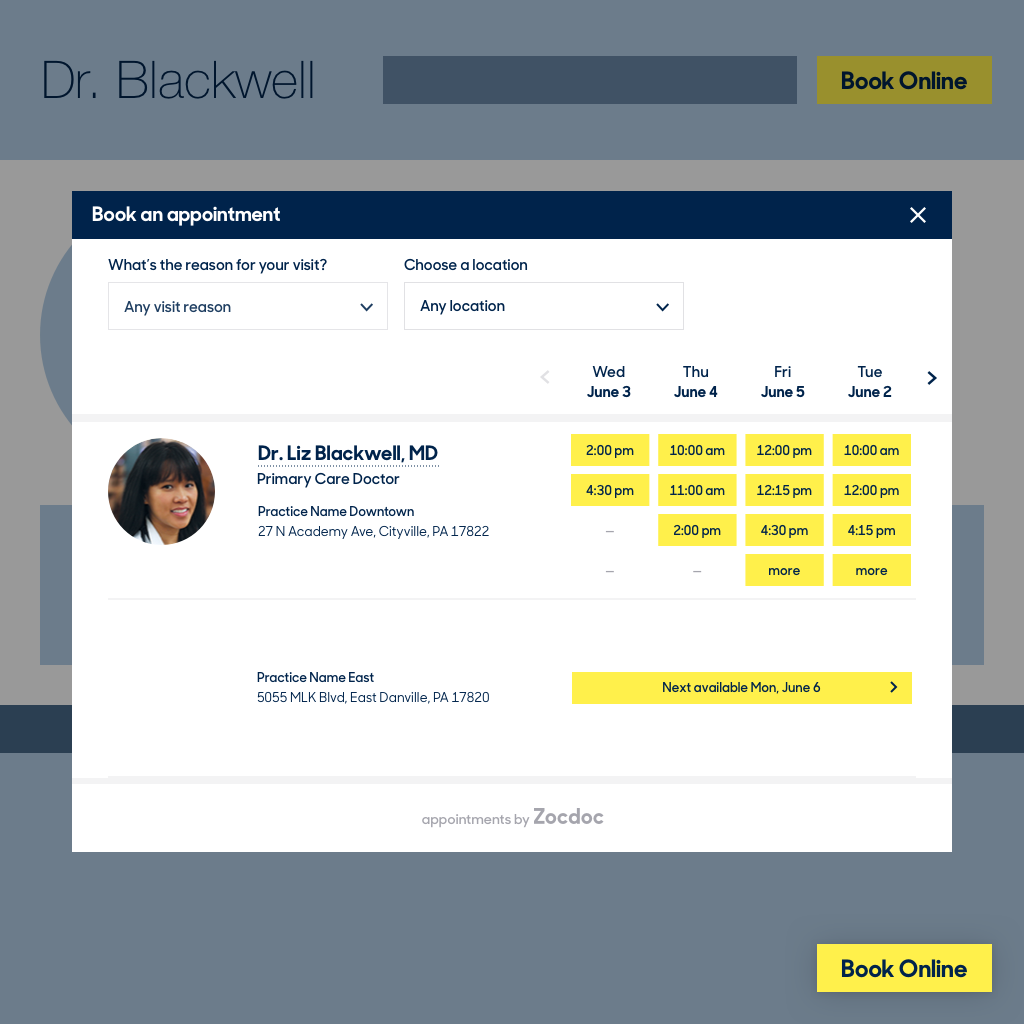
The Zocdoc Book Online Button opens a scheduling modal where customers can book appointments from your site.
Step 1 - Get the code from Zocdoc
To get the Zocdoc Book Online Button code:
- Log into your Zocdoc account and go to Account Features.
- Click Install or Update next to the Book Online Button.
- A new page will open. Copy the code.
Step 2 - Add the code to your Squarespace site
You can add the Zocdoc widget to any area that supports blocks. We recommend adding it to your homepage or footer. To add the Book Online Button:
- Open the Pages panel.
- Click the page where you'd like the widget to appear.
- Click an insert point and choose Code from the block menu. For more help with this step, visit code blocks.
- Paste the code Zocdoc sent you into the code field.
How visitors use the Book Online Button
When visitors click the Book Online Button, a scheduling pop-up appears where they can view your availability and book an appointment. Here's what the Zocdoc scheduling pop-up looks like:
Add button that links to your Zocdoc profile
You can also use a button block to link to your public Zocdoc profile page. This creates a customizable button that blends into your site's design. Contact your Zocdoc representative for help setting up the button link. Misconfigured links will affect the button’s performance.
Note: This code-based customization falls outside the scope of our support. This means that we’re unable to help further with setup or troubleshooting. Additionally, since this is a code-based solution, we can’t guarantee its functionality or full compatibility with Squarespace. This includes how it functions with our responsive design, particularly its appearance on mobile devices, and if it functions on all templates. Code-based customizations can also cause display issues with future updates to our platform. While we can't help further, there are many resources that can point you in the right direction:
- For help with your Zocdoc account, call them at 866-962-3621 or email them at service@zocdoc.com.
- Zocdoc can install the Book Online Button for you. To request this, complete the install form in your Zocdoc account, or call 866-962-3621.
- Learn best practices for adding custom code.
- Read our general guide on code-based customizations.
- Visit the Squarespace Forum, our customer and developer forum.
- Hire a Squarespace Expert to help build custom code for your site.
Comments
0 comments
Please sign in to leave a comment.